Our team can move your Mighty Networks community for you through the Mighty Networks API: you hand over an API key and your network id, and members, spaces, posts, events, courses, media and plans are moved across. Direct messages cannot move, because Mighty Networks has no API for them. This guide also covers the do-it-yourself route: what you can export, what to rebuild, the order to do it in, and how to keep the old network running until the new one has earned your members' trust.
If you move it yourself: what to export from Mighty Networks first
Do the export before you change anything else, while you are still on the plan you pay for today. According to Mighty Networks' own help pages (checked in October 2026), a host on the Launch plan or higher can download member data as an Excel file. Check which plan you are on, because the list is gated by plan.
The download is requested from the admin area, under Members and then Member List. Mighty Networks emails you a link to the current list, and asks you to accept terms that prohibit selling or sharing member data. Read those terms before you reuse the list for anything beyond inviting your own members to your own new home.
- The full member list. It is a wide spreadsheet that includes names, email addresses, join dates, last visit, which Spaces each person belongs to, tags and custom field answers.
- One list per Space. A Space host who is also a network host can download that Space's own member list from the Space settings, which is useful when you want to rebuild a private cohort exactly.
- One list per paid Plan. If you charge for access, each Plan has its own member list with payment status, plan interval and the end of the billing period. This is the sheet you will lean on to look after paying members.
- Screening question answers. Where a Plan or Space asks questions before people join, the answers come out on a second tab. Keep them, because they tell you who each person is.
Its help pages describe member lists, not an export of your posts, comments or course lessons. Do not assume those come out. Save your own originals of every course video, document and image now, and copy any post you would hate to lose into a document by hand. If your plan or a support request gets you more than the member lists, keep that too.
If you move it yourself: what you bring in and what you rebuild
Be clear about this before you promise members anything. The free BuddyNext Importer plugin moves a community off BuddyPress or BuddyBoss, and only those two. For Mighty Networks, either our team runs the move through its API, or you do it by hand: members are invited to new accounts and your content is rebuilt. The rest of this section is the by-hand route.
That is less bad than it sounds. A community that lives on a hosted platform is mostly made of people and a handful of pages that matter, and BuddyNext has tools for the people part.
- Bulk invites by CSV. In the Members area of the BuddyNext admin there is an Invites tab. You upload a file with an email address and an optional first name on each row, up to 500 rows per upload, and each person gets an invitation. You can also send single invites, resend one, or revoke one. This is included in the free plugin.
- Invite links for a Space. A Space owner or moderator can create a link that expires after a day, a week, a month or never, and can cap how many people may use it. A link can be revoked without issuing a new one.
- Auto-join. A Space can be set to add every new member at signup, or only members of chosen member types, so your Welcome Space is full from the first minute.
- A member export you hold. The Members admin screen has an Export CSV button that lists every member with ID, login, email, display name, registration date and suspension status.
What you rebuild by hand is the content. Pick the posts that new members still need: the welcome guide, the rules, the best answers, the course notes. Republish those as announcements or discussion posts. Leave the long tail of old chatter behind. A new community does not need three years of scrollback to feel alive, and a fresh start is often the point of moving.
The do-it-yourself move, step by step
- 1Decide what you are moving. List your Spaces, your courses, your paid Plans and your events, and mark each one as move, merge or retire. Most communities retire more than they expect.
- 2Export everything in the previous section and store it somewhere you control. Open each file once to confirm it has the columns you need.
- 3Build the new home on a staging copy of your site. Install the free BuddyNext plugin, create the Spaces you decided to keep, and choose each Space's visibility: open, private or secret.
- 4Rebuild the pages that matter. Welcome post, rules, pinned guides. Set the Welcome Space to auto-join new members.
- 5Set up payment if you charge. Membership tiers, Stripe and PayPal checkout and coupons are BuddyNext Pro. Create a plan for each paid Plan you are keeping and decide which Spaces each plan opens.
- 6Test as a stranger. Use a second browser and a fresh email address to accept an invitation, join, post and read a gated Space. Do it on a phone as well.
- 7Send a first small wave. Invite your most active members by CSV and ask them to break things. Fix what they find before anyone else arrives.
- 8Announce the move inside Mighty Networks with a date, a reason and a link, then invite everyone else in batches. Keep the old network open, as the next section explains.
- 9Retire the old network on a date you announced. Move it to read-only or cancel the plan only after your active members are posting in the new place.
Keeping Mighty Networks running during the move
Do not shut anything on the day you launch. Run both for a few weeks, and let the two spaces overlap on purpose.
Keep paying for the old network until the new one is the place where people answer each other. Before you cancel, find out in your plan settings what cancelling does to your Spaces and your member list, and finish every export while the old network is still fully open to you.
- Pin one post at the top of the old network that says where the new home is and the date the old one will stop.
- Post anything new in both places during the overlap, but answer questions only in the new one, so people learn where the conversation is.
- Run live events in one place only, and say which. Splitting a live session across two platforms halves the room.
- If members pay you through Mighty Networks, leave billing alone until you have a clear plan for them. See the next section.
Paying members need their own plan
With the team migration, members are seated on the matching membership plan from your payment records at cutover, which opens their spaces and enrols them in the plan's courses. How renewals bill is agreed with you before cutover, and you confirm the price and billing period of every plan, because Mighty Networks does not report prices reliably. If you move it yourself, BuddyNext has no tool that takes over subscriptions created on another platform, so a paying member subscribes again on a Pro plan. Plan that conversation instead of hoping it goes unnoticed.
With BuddyNext Pro you can sell membership plans with monthly or annual billing, take payment by Stripe or PayPal, and discount with coupons, so a founding discount for people who move across is a coupon you create yourself. If a member has already paid you for a period elsewhere, the Pro Billing screen has an Add order form for recording a payment that arrived outside the site. Their access then follows the plan you assign. Agree with each paying member when their old billing ends so nobody is charged twice.
What you get instead, and which tier it is
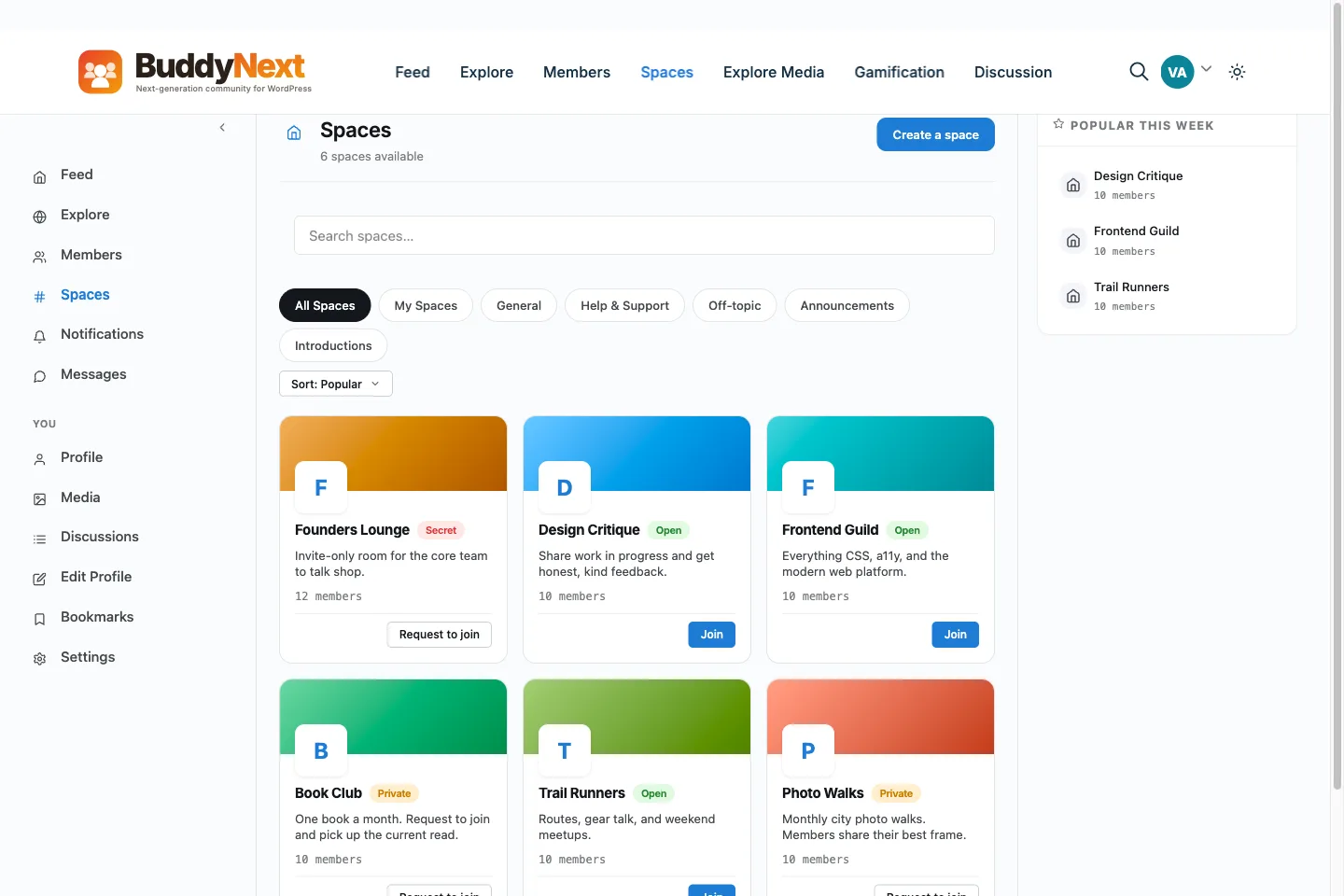
- Free: an activity feed with polls, links, images and video, spaces with open, private and secret visibility, categories and sub-spaces, member profiles with custom fields, a member directory you can sort by newest, alphabetical, most active or online, member types, notifications, hashtags to follow, a reporting and moderation queue, and a REST API.
- Free, with a companion plugin: direct messages run on WPMediaVerse, which BuddyNext uses as the message store, and discussion forums linked to a Space run on Jetonomy.
- Pro: membership plans, Stripe and PayPal, coupons, invoices, gated Spaces, broadcast email to segments and drip sequences, scheduled posts, analytics, member labels and live updates.
- Courses: Learnomy is a separate LMS plugin from the same team. The Learnomy bridge is in BuddyNext Pro. It posts course completions and certificates to the feed, can link a course to a Space so learners are added when they enrol, and can enrol people in a course from a membership plan. It needs both plugins installed.
- Events: Eventonomy is the events plugin, and its bridge is in BuddyNext Pro. It puts published events and attending cards into the feed.
Some things are different from Mighty Networks and you should plan for them. There is no matching or "people magic" engine. Following people and suggested spaces exist, but pairing members is something an organiser does. The branded mobile app is not a switch you turn on: BuddyNext can be installed as an app from the browser, and the native app is a separate matter.
Do your own sums, with your own figures
Fee comparisons age badly, so this page quotes none. Take your recent invoices from Mighty Networks, add any app or transaction charges, and write the total beside what you would pay for hosting, the BuddyNext Pro licence you actually need and a payment processor. The processor charges you on either side. The difference is yours to judge, and it should include the time you will spend running a site.
Also count what you cannot price: owning the member list, choosing your own plugins and not having a vendor change the terms underneath you. If a hosted platform's convenience is worth more than that to you, staying is a fair decision.