
Community Roles and Moderators
Moderation & Trust Free & ProYour community has three roles that decide who can help run it - member, moderator, and admin - sitting below you, the site administrator. Members take part, moderators keep things tidy across the whole community, and admins help you run it. Appointing a couple of trusted people is how a growing community stays healthy without every report and every off-topic thread landing on one person.
Why use it#
A community with one owner and a few hundred members does not scale. You cannot read every post, clear every report, and answer every join request yourself. Promoting a trusted member to moderator hands them the day-to-day work - clearing the moderation queue, removing spam, pinning the posts that matter - while the decisions that should stay with you, like changing what each role is allowed to do, stay with you and your admins.
These roles are community-wide. A moderator here can moderate anywhere in the community, not just one space. (Spaces have their own separate owner / moderator / member roles for running a single space - see Roles, Moderators, and Permissions.)
The three roles#
Each role can do everything the role below it can, plus more. The table lists the community-wide abilities each role adds.
| Ability | Member | Moderator | Admin |
|---|---|---|---|
| Post, comment, react, and join spaces | Yes | Yes | Yes |
| Report content and appeal decisions | Yes | Yes | Yes |
| Review the moderation queue | No | Yes | Yes |
| Remove any post or comment, and pin posts | No | Yes | Yes |
| Issue strikes and warnings | No | Yes | Yes |
| Review reports from every space in Community Admin | No | Yes | Yes |
| Suspend a member for a set number of days | No | Yes | Yes |
| See posts from suspended and shadow-banned members, to review them | No | Yes | Yes |
| Suspend a member with no end date | No | No | Yes |
| Decide appeals | No | No | Yes |
| Edit any member's post, comment or profile | No | No | Yes |
| Post and end site-wide announcements | No | No | Yes |
| Promote members to moderator | No | No | Yes |
Above all three sits the site administrator - the WordPress admin who installed BuddyNext. The site administrator can do everything an admin can, and two things no one else can: grant the top admin role to someone, and change what each role is allowed to do (see Settings, below).
Inside a space, membership (approving join requests, banning and removing members) is run by that space's own owner and moderators. A community moderator handles reports from every space but does not run a space they are not part of, the same way they do not see inside a private or secret space. WordPress site administrators can do both everywhere.
These are the defaults. If you have adjusted the Roles & Capabilities settings, your community's abilities may differ from the table above.
How to promote someone#
There are two places to change a member's community role. Both write the same role, so use whichever you have open.
From the front end - open the Community Admin panel (the Community Admin tab at the end of the front-end Settings tabs, visible to moderators and admins), go to Members, and pick a new role from the dropdown next to the person. The change saves immediately.
From the WordPress admin - go to BuddyNext > Members > Directory, open the member to edit them, and set their role in the Community role section (Member, Moderator or Admin). Save the profile. The directory table also shows each member's community role in a Community role column.
A few rules keep this safe:
- Only an admin or the site administrator can change roles. Moderators see the roles but cannot change them.
- You cannot change your own role.
- Granting the top admin role is reserved for the site administrator.
Tune what each role can do#
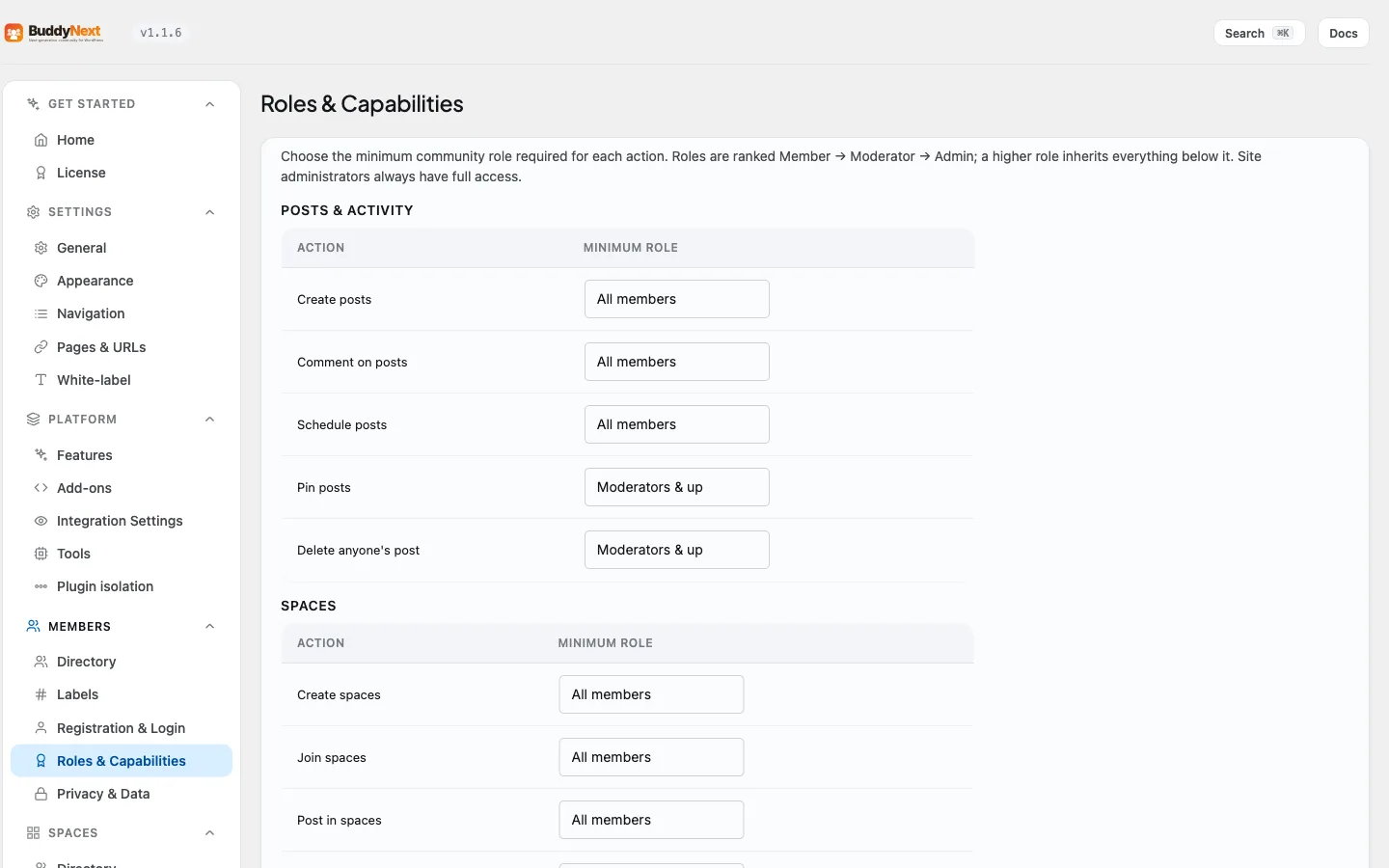
The table above is the starting point, not a fixed rule. Open Members > Roles & Capabilities to change the minimum role each ability needs - for example, letting members create spaces, or requiring admin to pin a post. Every ability in the community reads from this one place, so a change here applies everywhere at once.
For the full list of abilities and how to override them in code, see Roles and Capabilities in the developer guide.
Related#
- Roles and Permissions - tuning what each community role may do
- Moderation Queue - the queue moderators are promoted to work
- Moderating a Member - the enforcement actions a moderator can take