
Roles and Permissions
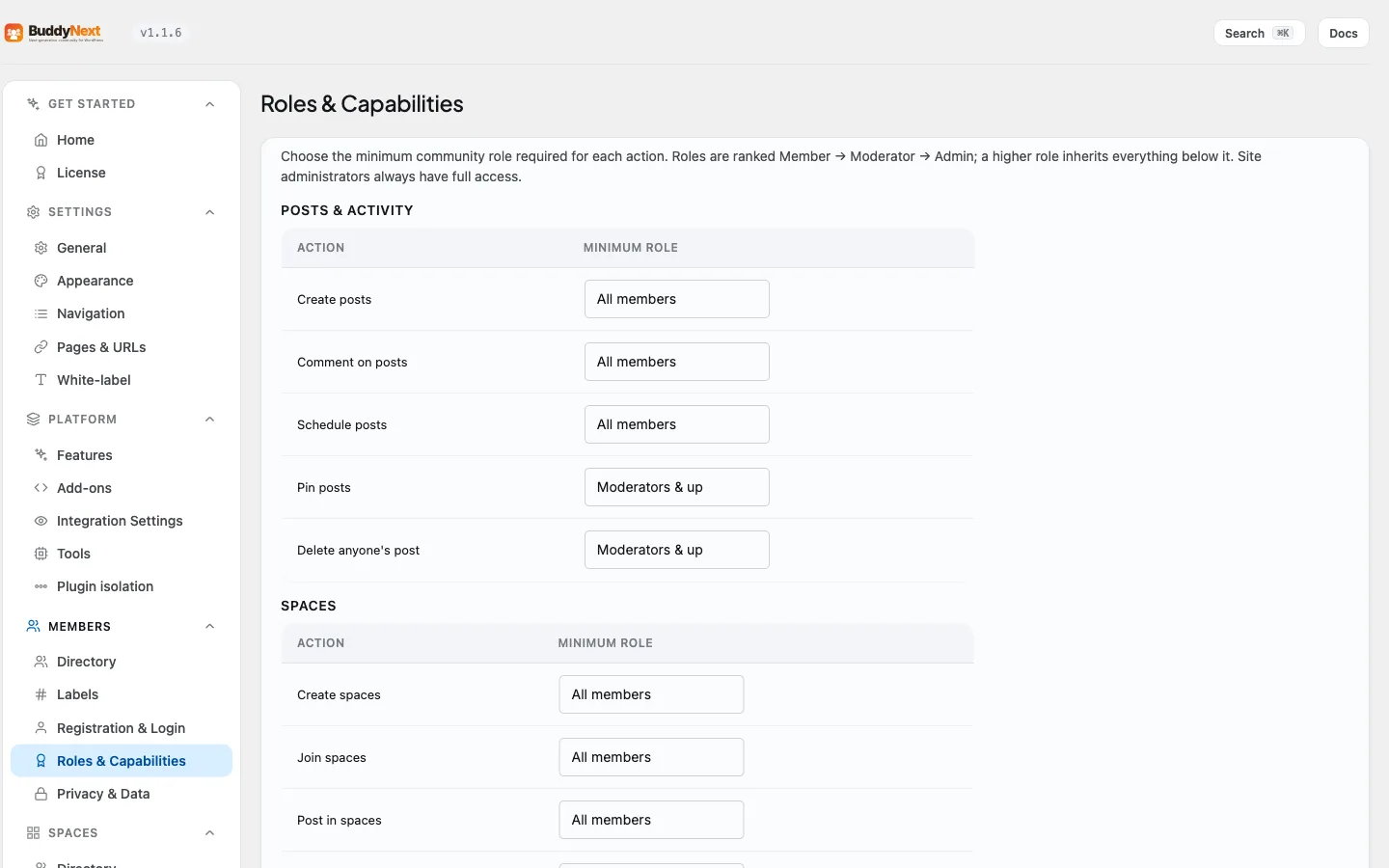
Members & Social Graph Free & ProRoles and Permissions is where you decide who is allowed to do what across your whole community. Instead of a fixed set of rules, BuddyNext lets you set the minimum role required for each action - creating posts, starting spaces, following members, reporting content, and more - so the same platform can run a wide-open public community or a tightly controlled private one. You find it under BuddyNext > Members > Roles & Capabilities.
Why use it#
Every community draws its own line between "let members do this freely" and "keep this to trusted people." A hobby community might let anyone create a space; a professional network might reserve that for admins. Rather than making you accept one built-in policy, this screen turns each action into a simple choice: what is the lowest role that may do it. Set the dials once and the rule is enforced everywhere that action can happen - on the web, in the app, and through the API - with no code.
How roles are ranked#
BuddyNext uses three community roles, ranked from least to most trusted:
Member → Moderator → Admin
A higher role automatically inherits everything a lower role can do. If Moderators can do something, Admins can too. Site administrators (your WordPress admins) always have full access and are never restricted by this screen, so you can never accidentally lock yourself out.
Setting a permission#
Each action has a single dropdown with four choices for the minimum role allowed:
| Choice | Who can do the action |
|---|---|
| All members | Every logged-in member, and everyone above them. |
| Moderators & up | Moderators and Admins only. |
| Admins only | Community Admins only. |
| Off (site admins only) | No community role can do it - only your WordPress site administrators. |
Pick the level you want for each row and save. The change takes effect immediately.
What you can control#
The actions are grouped so related controls sit together:
- Posts and activity - create posts, comment on posts, react, share and vote, schedule posts, delete anyone's post or comment, edit anyone's post or comment, and post site-wide announcements.
- Spaces - create spaces, join spaces, post inside spaces, and moderate spaces.
- Connections - follow members and send connection requests.
- Profiles - edit anyone's profile, including the member type they could pick for themselves. Types you hand out (self-select off) stay with WordPress administrators.
- Moderation - report content, review the report queue, resolve reports, issue strikes, suspend members, suspend members with no end date, and decide appeals.
Grouping them this way means you can, for example, open up posting and commenting to all members while keeping every moderation power to your trusted team.
Out of the box, Moderators remove posts and comments, work the report queue, issue strikes and suspend members for a set number of days, all without being WordPress administrators. Suspending with no end date, deciding appeals and editing other members' posts start at Admins only; move any of them down to Moderators here if your team works that way. Changing members' community roles stays with community Admins, and only a WordPress site administrator can make someone a community Admin.
How this relates to space roles#
The permissions here are community-wide - they set the baseline for the whole site. Individual spaces have their own owner and moderator roles that govern what happens inside that one space. See the Spaces documentation on roles and moderators for controls that apply within a single community rather than across the whole site.
Note: Because a higher role inherits everything below it, you only ever set the lowest role that should have an action. You do not need to grant the same permission again at each higher level.
Note: This tab lives in the Advanced area of the Members section. On a brand-new community the sensible defaults already suit most owners - open this screen only when you want to tighten or loosen a specific action.
Related#
- Roles, Moderators, and Permissions - the space-level roles inside a single space
- Community Roles and Moderators - the community moderation team
- Moderation Queue - the report queue these permissions gate