
Custom Profile Fields
Members & Social Graph Free & ProProfile fields let you decide what members can tell each other about themselves. You build the fields (name, bio, role, location, links, and more), and members fill them in on their profile. BuddyNext ships with a starter set of groups and fields, and you can add your own.
Why use it#
A profile is the first thing one member sees about another. Out of the box you get a name and an avatar, which is rarely enough for a real community. Custom fields turn a thin profile into a useful one: a member can show their role, their skills, where they work, the links they want to share, and anything else your community cares about.
Two things make this worth setting up early:
- Richer profiles. Members who can describe themselves are more likely to be recognised, followed, and trusted. A profile that answers "who is this and why should I connect" does more for engagement than any feature you can bolt on later.
- Easier to find each other. Fields you mark Include in search are added to member search - the directory's search box and the site search. If you collect "Skills" or "Department" as a field, typing "React" or "Finance" finds the members who filled it in. Empty profiles cannot be found this way, so the fields you ask for today are what members can search on tomorrow.
You group fields so they render as tidy sections (Basic Info, Work Experience, and so on), control who can see each one, and choose which fields appear on the sign-up form so you collect the essentials before a member ever reaches their profile.
How it works (for members)#
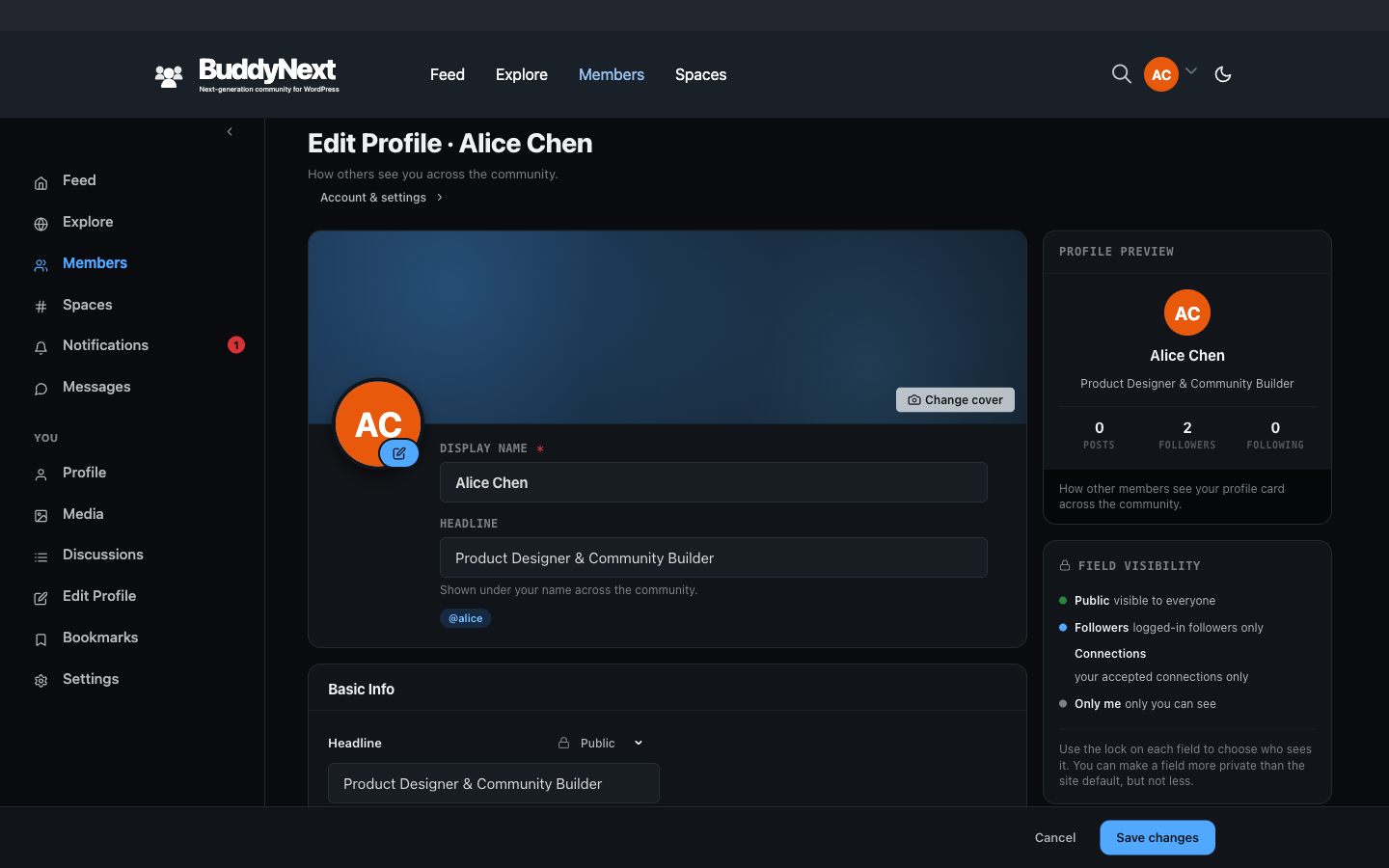
A member manages their own fields from Edit Profile.
- Fill in fields. Every field you have created shows on the member's Edit Profile form, grouped by section. The member types or selects a value and saves. Empty fields are simply left blank.
- Repeating sections. Some groups (for example Work Experience or Education) allow more than one entry, so a member can add several jobs or schools, each with its own set of values.
- Per-field visibility. Next to each field the member can set who is allowed to see that value. The visibility you set is only a starting point, not a floor: each member can change their own field's audience anywhere up to the group's ceiling - opening it up to Public, or narrowing it to Only me. A member can never make a field more open than the group allows, but within that ceiling the choice is theirs.
When another member views the profile, they see only the fields their relationship allows. A logged-out visitor, a follower, a connection, and the profile owner can each see a different set of values from the same profile.
Setting it up (for owners)#
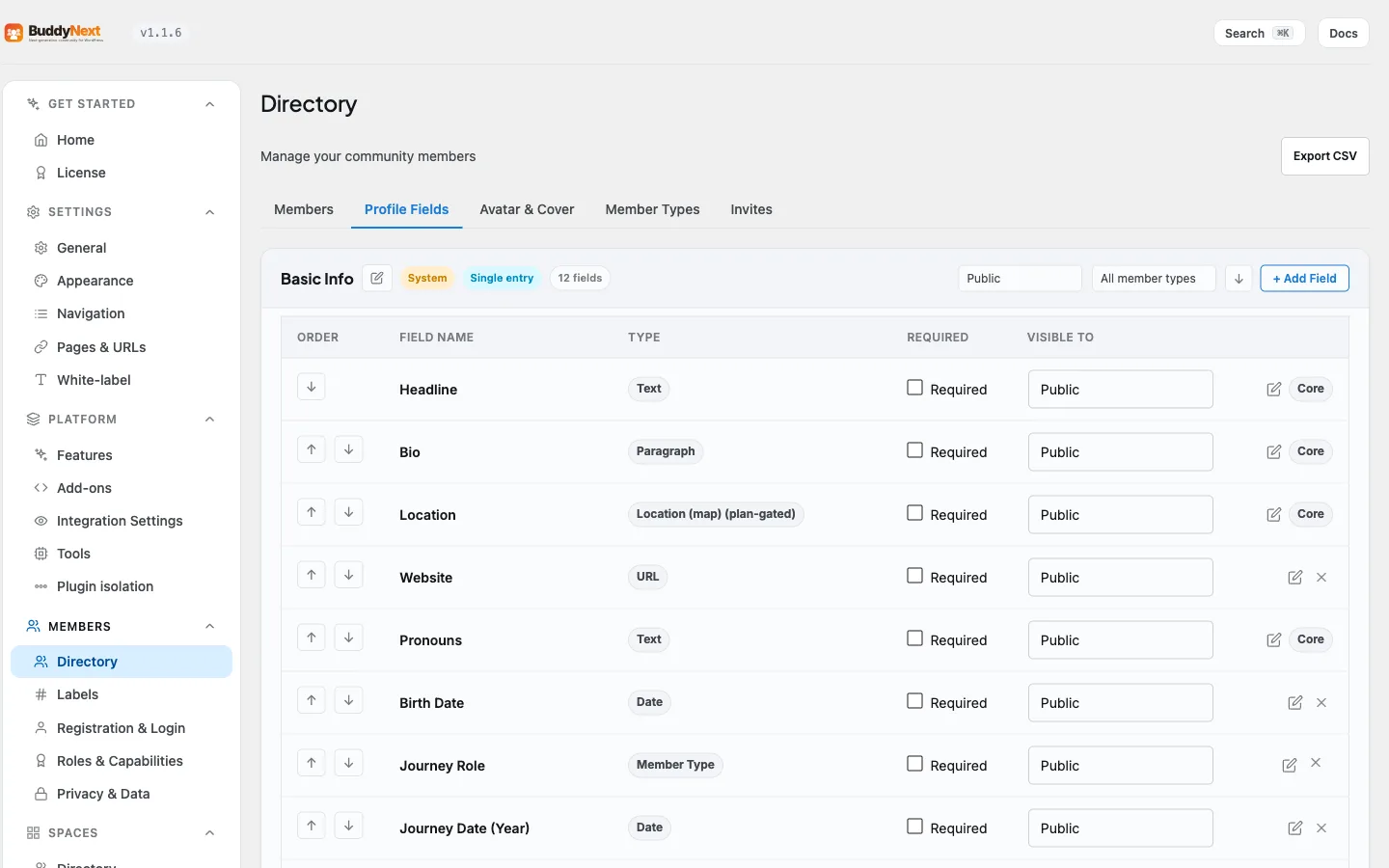
You manage groups and fields from the BuddyNext profile fields admin area. A group is a section; a field lives inside a group.
Create a group, then add fields#
- Create a field group and give it a label (for example "Professional Info"). Choose whether the group is a flat section or a repeating section.
- Add one or more fields to the group. For each field you set its label, its type, and the controls below.
- Reorder groups and fields so they render in the order you want.
Per-field controls#
Every field carries the following controls.
| Control | What it controls | Default |
|---|---|---|
| Label | The field name members see on the form and the profile. | (required, no default) |
| Field type | How the field is captured and displayed - see the type table below. You can change the type of an existing field. Values members already entered are converted where the new type can hold them (for example a plain-text Location becomes a map address) and shown as best they can be otherwise. | Short text |
| Visibility | Who can see the value: Public, Members only, Followers only, Connections only, or Only me. This is the starting value each member gets; a member can then set their own field's audience anywhere up to the group's ceiling. | Members only |
| Required | Marks the field as expected. The member is nudged to complete it (it counts against their profile completion score). | Off |
| Include in search | Adds the value to member search, so members can find each other by typing it into the directory's search box or the site search. It does not add a directory filter. Available on text-style fields only. How far it reaches depends on the field's visibility - see below. | Off |
| Ask for this on the registration form | Adds the field to the sign-up form so you collect it before the member reaches their profile. Fields in a repeating group cannot be added to sign-up. | Off |
| Show in the profile header | Puts the field's value in the row of details under the member's name in the profile header (the default header shows Location and Website). Which fields appear, and their order, is entirely up to this flag and the field's sort order - there is no fixed list. Fields in a repeating group cannot be shown in the header. | Off, except Location and Website, which start on |
| Sort order | The position of the field within its group. Lower numbers appear first. | Appended last |
Group controls#
| Control | What it controls | Default |
|---|---|---|
| Label | The section heading shown on the profile and edit form. | (required, no default) |
| Type | Flat (single set of fields) or Repeater (members can add multiple entries). | Flat |
| Visibility | Section-level visibility that sets the ceiling for every field inside it (same five levels). Group visibility is the ceiling; each field starts at its default and a member may set their own field anywhere up to that ceiling. | Members only |
| Sort order | The position of the group on the profile. Lower numbers appear first. | Appended last |
Field types (free plan)#
The free plan covers the everyday field types most communities need.
| Type | Use it for |
|---|---|
| Short text | Short single-line answers (job title, city). |
| Long text | Longer free text (bio, about me). |
| Number | Numeric values (years of experience). |
| URL | A single web address. |
| An email address. | |
| Phone | A phone number. |
| Date | A single date. |
| Yes / No | A simple boolean toggle. |
| Dropdown | One choice from a list you define. |
| Radio buttons | One choice shown as radio buttons. |
| Multi-select | Several choices from a list. |
| Color | A color value. |
Tip: Turn on Include in search for the fields people will look each other up by (such as Skills or Department), and leave it off for the rest. It makes the value findable by typing it into search; it does not add a filter to the member directory.
How far a searchable field reaches (1.0.8)#
Ticking Include in search does not override the field's visibility - it works inside it. What "searchable" gets you therefore depends on which visibility the field carries:
| Field visibility | Ticking Include in search means... |
|---|---|
| Public | Anyone can find the member by this value, including a logged-out visitor. |
| Members only | Only a signed-in member can find them by it. A logged-out visitor never matches it. |
| Followers only, Connections only, Only me | The value is not put into the search index at all, so it never matches for anyone. Searchable has no effect on these. |
Before 1.0.8, ticking Searchable on anything other than a Public field silently did nothing: no index entry, no warning. If you ticked it on a Members-only field and wondered why nobody could be found by it, that is why - and it now works as you would expect.
Tip: If a field exists to help members find each other, set it to Public or Members only. Setting it to Followers only and ticking Searchable is a contradiction: you cannot be found by something only your existing followers can see.
Displaying a date without exposing it (Date fields)#
A Date field carries a Display as control with four choices:
| Display as | What other members see |
|---|---|
| Full date | Jan 15, 1990 |
| Month + Year | Jan 1990 |
| Year only | 1990 |
| Calculated age | 34 years old |
This matters most on a birthday field. Choosing Year only or Calculated age means the member's full date of birth is never published - the profile, the member card, and the app all receive only the reduced form. The exact date stays in the member's own record.
Warning: In releases before 1.0.8 this control was saved but never applied - every date rendered as the full stored date regardless of what you picked. If you set a birthday field to Year only or Calculated age on an earlier version, check it now: it is finally doing what it said.
Showing a group on a page with the block#
You can render a single profile group anywhere on the site with the Profile Fields block. The block has two settings: which member's profile to read from, and which group to display (for example Basic Info or Work Experience). Leave the member setting at its default to show the profile being viewed.
Shaping the form (1.0.4)#
Since 1.0.4 the profile form is fully yours to shape:
- Help text and placeholders. Every field can carry an owner-written hint that renders under its name, and an example placeholder inside the input. Both appear on the profile editor and the signup form - write them once, guide members everywhere.
- Sections per member type. A group can be limited to one member type. A "Coach details" section then appears only on coaches' profiles, never on students' - and a restricted section never appears on the signup form, because the member has no type yet at that point.
- Remove preset sections. The seeded Social Links, Work Experience, Education, and (since 1.0.7) Skills groups can all be deleted when they do not fit your community. Profiles simply hide a section that is gone.
- Core fields are protected. Bio, headline, and location cannot be deleted, because member cards, search, and the directory depend on them. Everything else is fair game.
- Deletes show their impact. Removing a field or group that holds member data tells you exactly how many members are affected and asks you to type its name to confirm. The value cleanup then runs in small background batches, so deleting a field on a 100,000-member site does not slow anything down.
Clearer field setup (1.0.7)#
- Show on registration, set once. The add-field form now includes the "Show on the registration form" checkbox directly, so you decide whether a new field collects a value at signup while you are creating it, instead of adding the field first and coming back to turn it on.
- Field types explain themselves. The add-field form describes what each type does as you pick it - for example, that Dropdown, Radio, and Multi-select let members choose from the options you define below, while Yes / No is a single checkbox and the rest are free text. You no longer have to guess which type fits before trying it.
Options with their own label (1.2.5)#
For a Dropdown, Radio or Multi-select field you type one option per line in the Options box. What you type is both what members see and what is stored.
When you want members to see one thing and store another, write the stored value, a |, then the label:
s|Small
m|Medium
l|Large
Members are offered Small, Medium and Large, and their profile shows the label. The stored value stays s, m or l, which is useful when another tool reads it, or when you want to reword a label later without touching what members already picked.
- A list with no
|works exactly as before. - Renaming the field, or changing any other setting, never changes its options. Only editing the Options box does.
- Fields created with choices in 1.2.4 open with their choices shown in this
value|Labelform. Before 1.2.5 they opened with an empty Options box, and saving then removed the choices.
Fields that need attention (1.2.1)#
When a field is set up in a way that stops members from answering it, the Profile Fields screen shows a Some profile fields need attention notice at the top. Each problem names the field, says what is wrong, and has a Fix button that opens that field's panel. The notice stays until the problem is fixed.
| Problem | What members experience |
|---|---|
| A Dropdown, Radio or Multi-select field has no options | Nobody can answer it. If it is required, members cannot save their profile. |
| A conditional field is asked on the registration form but the field that decides is not (Pro) | It never shows at signup. |
| A conditional field depends on member types members cannot choose at signup (Pro) | It never shows at signup. |
| A condition's field was deleted or lost the answers it checks (Pro) | The field is shown to everyone until you fix it. |
The field panel also blocks saving a Dropdown, Radio or Multi-select field with no options, with a message just above the Save button.
On the registration and "Almost there" forms, a problem with an answer (a missing required field, for example) is shown under that field and the cursor moves to it, instead of a general message at the top of the form.
Good to know#
- Visibility is enforced by relationship, not by hiding in the page. When a profile is read, BuddyNext checks the viewer's relationship to the owner (logged-out, follower, connection, or the owner themselves) and drops any field the viewer is not allowed to see before the value ever leaves the server. A Private field never appears for anyone but the owner.
- The member's own choice decides, capped by the group ceiling. A field's effective visibility is the member's own per-field choice, capped by the group ceiling. New fields start at Members only; each member can then open their own field up to the ceiling (including Public) or narrow it to Only me.
- Required is enforced. Since 1.0.4, saving a profile with a required field left empty is rejected with a clear message next to that field. Required fields also count against the member's profile completion score.
- Required only applies where the field is actually shown. If you limit a group to one member type and mark a field in it required, members of every other type are not asked for it and are not blocked by it. (Before 1.0.8 they were told a field was missing that they could not see and could never fill in, which left them unable to save their profile at all.)
- A field's type survives an edit made while Pro is inactive. Editing a field whose type is provided by an add-on (a Pro type such as Location) no longer silently resets it to Text when that add-on happens to be switched off. Deactivate Pro, edit a field's label, reactivate Pro, and the field is still the type you built.
- Bad values are skipped, not rejected. If a member enters a value that does not fit the field type (for example letters in a Number field), that one value is not stored and the rest of the profile still saves. The member is not shown an inline error for the skipped field today.
- Empty profiles hide the feature. A field with no value does not render on the profile view. A brand-new community with empty profiles will look sparse until members fill fields in, which is why setting a few fields to show on registration is worth doing.
- The starter set is yours to keep or change. BuddyNext seeds a few groups (Basic Info, Social Links, Work Experience, Education, Skills, and Interests) so you are not starting from a blank slate. You can edit, reorder, or extend them - see Member Interests for the one field with a system role.
Free vs Pro#
The free plan covers the basics: the everyday field types listed above (text, paragraph, number, URL, email, phone, date, yes/no, dropdown, radio, multi-select, and color), grouped into sections with visibility, required, searchable, show-on-registration and show-in-header controls. For a typical community a handful of well-chosen fields is enough to get started.
Pro adds four advanced field types for communities that need richer data capture:
- Extended date (finer date handling)
- Location (a map picker that stores an address plus its coordinates)
- Multi-select (advanced multi-choice)
- Advanced number (numeric fields with extra rules)
A Location field only ever publishes the member's chosen address to other people, connected apps, and the API - never the exact coordinates. The member's precise point is theirs alone, used to draw their own map picker when they come back to edit it; everyone else, including a "connections only" viewer who otherwise qualifies to see the field, gets the readable place name.
These advanced types are registered by the Pro add-on and become available in the same field type picker once Pro is active. For the full list and setup, see Advanced Profile Fields.
Pro also adds conditional logic. It is an option on a field, not a field type: tick "Only show this field when" in the field's panel and the field shows only when another field has a certain answer (for example "Beard style" only when Gender is Male). See Conditional Logic for Profile Fields.
Related#
- The Profile About Tab - where the fields you define are laid out for viewers
- Member Interests - the one profile field with a system role
- Advanced Profile Field Types (Pro) - the four extra field types Pro adds
- Conditional Logic for Profile Fields (Pro) - show a field only when another answer matches
- Member Directory - how searchable fields feed directory search