
Member Types
Members & Social Graph Free & ProMember types are the categories you define for the people in your community - Student, Mentor, Staff, Alumni, and so on. Each type can carry a colored badge, appear as a filter in the member directory, and optionally be picked by members themselves.
Why use it#
People in a community are not interchangeable. A coaching site has coaches and clients; a school has students, teachers, and staff; an alumni network has graduates by year. Member types let you label those groups once, then use that label everywhere it matters: as a badge on profiles and member cards so people can tell at a glance who they are talking to, and as a filter in the directory so anyone can show only the group they are looking for.
For the owner, types are a structure you set up in minutes that pays off across the whole community. You stop answering "who here is a mentor?" because members can filter the directory themselves. And if you let members self-assign, your roster categorizes itself as people join.
How it works (for members)#
Most member types are assigned by you, the owner. From a member's point of view, a type they have been given shows up as a colored badge:
- on their profile header, and
- on their card in the member directory.
The badge uses the color you chose for the type, so groups are visually distinct.
If you mark a type as self-selectable, members can choose it themselves. The type then appears as a selector on their own profile edit page, and they can pick from the available self-select types - or choose "None" to clear the type they picked earlier. Types you have not marked self-selectable never appear as a choice - only an owner can assign those.
Setting it up (for owners)#
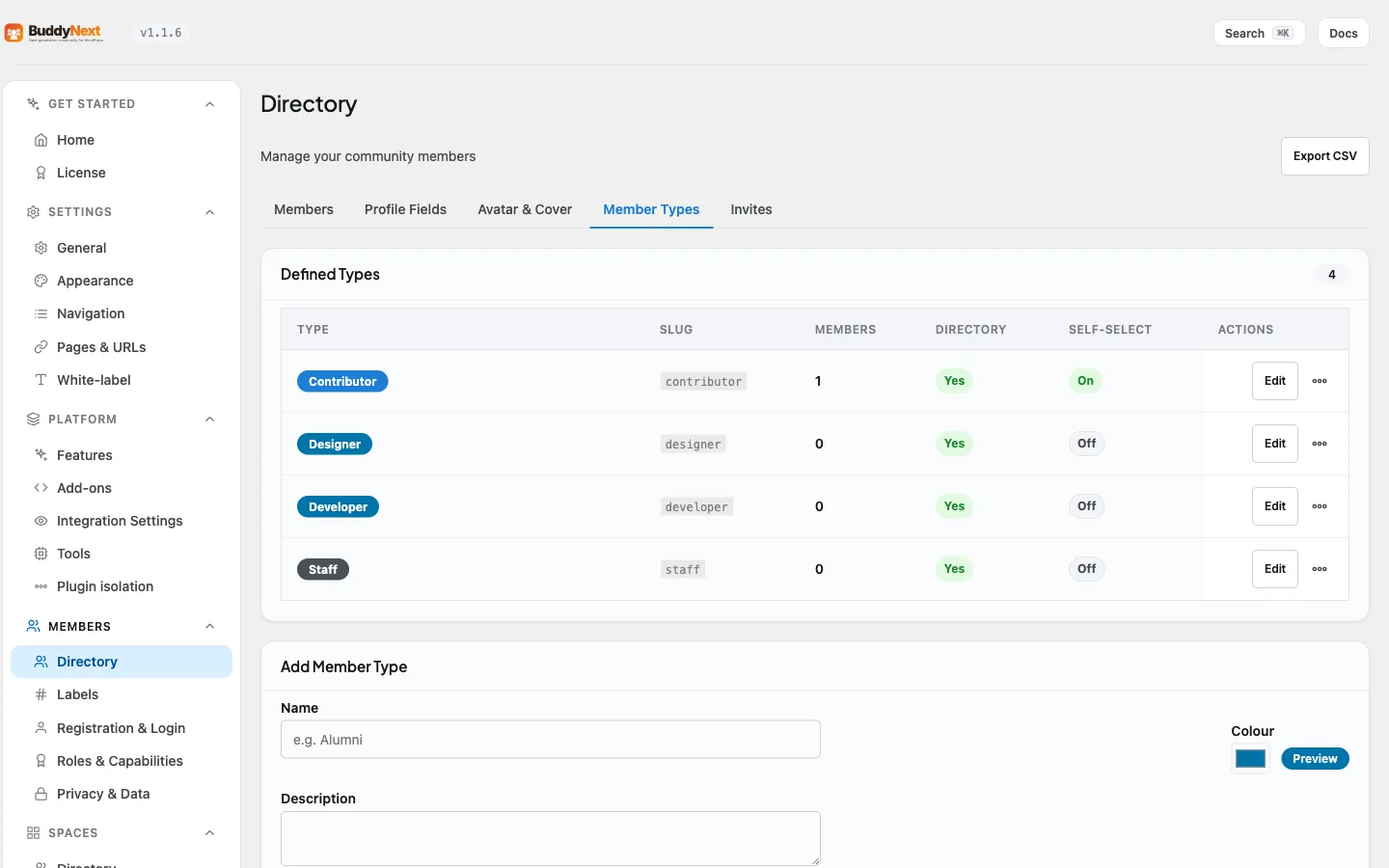
Member types are managed under BuddyNext > Members > Directory > Member Types in the admin. From there you create types, edit them, and assign them to members.
Creating and editing a type#
Use the Add Member Type form (the same form edits an existing type). The fields are:
| Setting | What it does | Default |
|---|---|---|
| Name | The display name of the type, shown on the badge and the directory filter (for example, "Mentor") | Empty |
| Color | The badge background color for this type | A default blue |
| Description | An optional note describing the type, for your own reference | Empty |
| Web address | The short, readable identifier used in links (lowercase letters, numbers, hyphens). Auto-filled from the name if left blank | Auto from name |
| Text color | The badge text color, drawn on top of the badge background. | White |
| Sort order | Controls the order types appear in; lower numbers appear first | 0 |
| Icon | An optional small icon for the type, shown alongside the badge | Empty |
| Show as directory filter tab | When on, this type appears in the member directory's type filter | On |
| Let members choose this type for themselves | When on, members can pick this type for themselves on their profile edit page | Off |
Web address, Text color, Sort order, and Icon live under the Advanced section of the form.
Assigning a type to a member#
Open a member from the admin members list and use the Member Type dropdown in the Edit Member view (see Editing a Member from the Admin). Choose a type to assign it, or choose "No type" to remove the assignment. A member has at most one type at a time.
Self-selectable types#
If a type has Allow members to self-assign turned on, members can set it themselves from their profile edit page - you do not have to assign it. This is useful when the member knows their own category better than you do (a skill track, a role they identify with). Members can also pick "None" to clear a self-selected type and go back to having no type. The profile selector only lists types you have marked self-selectable; if none are self-selectable, no selector appears.
Good to know#
- Types power directory filtering and badges. The same type does double duty: the "Show as directory filter tab" toggle turns it into a directory filter, and the color (and optional icon) you set is what renders as the badge on profiles and cards. Define the type once and both follow.
- One type per member. Assigning a new type replaces the previous one; there is no stacking of multiple types on the same person. For layering additional editorial badges on top of a type, see Free vs Pro below.
- Badges only show when assigned. A type you have created but not assigned to anyone shows no badges and an empty directory filter until at least one member has it. On a new site, create your types and assign a few before expecting the directory filter and badges to look populated.
- Deleting a type removes its assignments. When you delete a type, the members who had it lose that assignment. The delete action warns you how many members are affected before it runs.
- Self-select works in connected apps too. Members using a connected app can self-assign a type the same way, and the same rule is enforced - they can only pick types you have allowed.
Free vs Pro#
Member types - creating types, assigning them, self-selectable types, the directory type filter, and the type color and icon badges - are included in BuddyNext free.
Editorial Member Labels are a Pro addition and serve a different purpose. Where a member type is the member's category (one per member, and what the directory filters by), Member Labels are owner-applied editorial badges such as Verified, Expert, or Staff that you can stack on top of a member's type - they appear on profiles and post bylines to signal standing and trust. If you want recognition badges layered over your member types, see Member Labels.
Related#
- Member Directory - where type badges and the type filter appear
- Custom Profile Fields - limiting a field section to one member type
- Member Labels - Pro editorial badges you stack on top of a type
- Editing a Member from the Admin - the Edit Member view the type dropdown lives on