
Profile Media and Albums
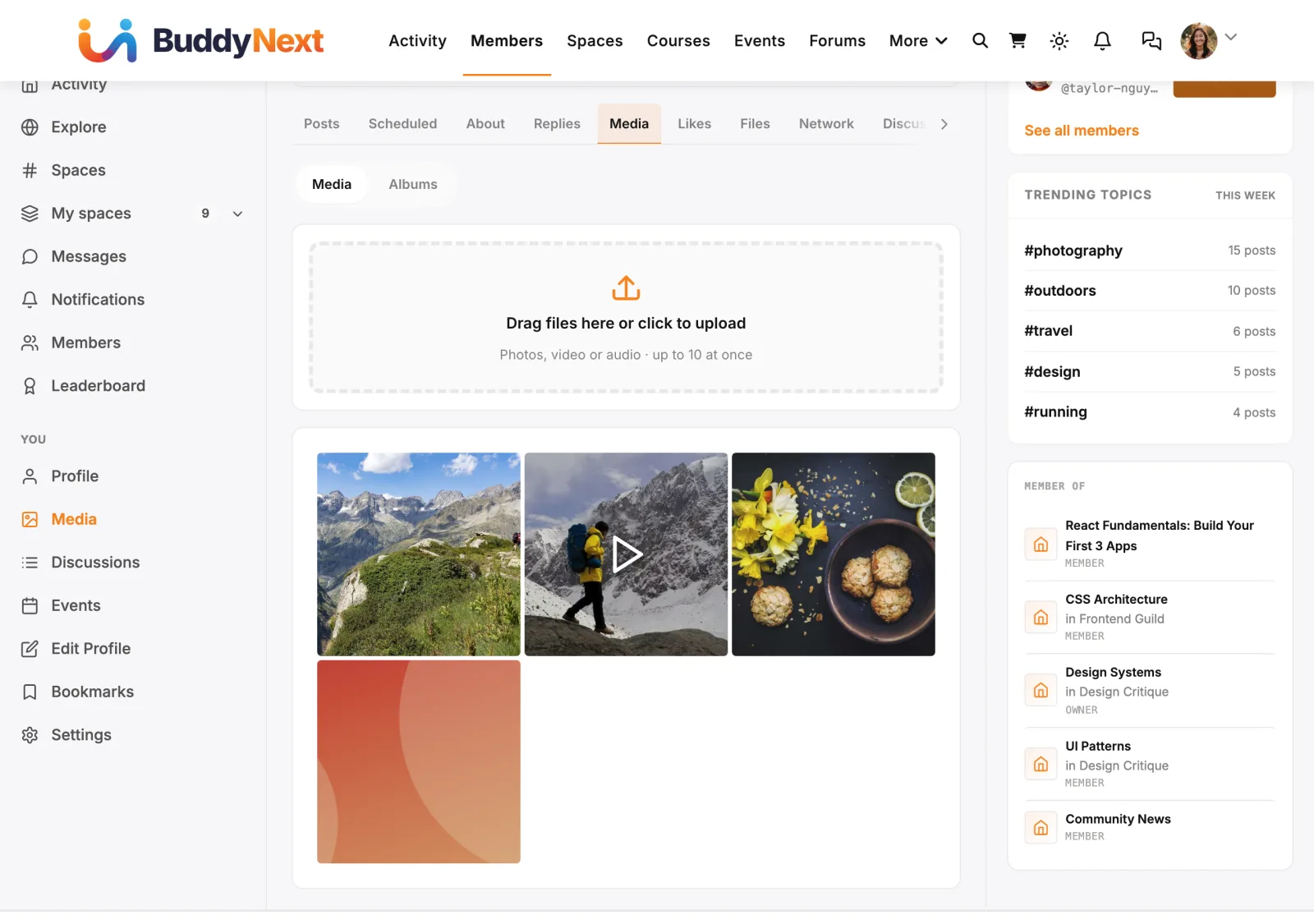
Members & Social Graph Free & ProEvery member profile has a Media tab where members upload their own photos and videos, choose who can see each one, and group them into albums. It turns a profile from a single header image into a personal gallery - a place a member can show their work, their trips, or whatever they want the community to see.
Why use it#
A profile with a real gallery behind it reads as a real person with a real story. When a member can post a set of photos from an event, a portfolio of their work, or a short video, other members have a reason to visit the profile, follow, and start a conversation. A community where members share media feels alive and personal in a way that text alone never does.
For the member, the Media tab is the one place they fully control what they show and who gets to see it. They can keep some photos open to everyone, share others only with the people they have connected with, and keep a private set just for themselves. Albums let them organize all of that into named sets - "Summer trip," "Portfolio," "Behind the scenes" - instead of one long unsorted wall.
For the site owner, member media is some of the most engaging content a community can have. It gives people a reason to come back, and because every upload carries its own privacy choice, members stay in control and the owner does not have to police a free-for-all.
How it works (for members)#
The Media tab appears on your profile with two views you can switch between at the top: Media and Albums.
Uploading photos and videos#
Open the Media view on your own profile. Use the upload control to pick one or more photos or videos from your device. Each file uploads and appears in your gallery right away, newest first. The grid handles photos and videos together, and videos show a preview frame so the gallery stays tidy.
Your gallery is paginated, so even a member with hundreds of items loads quickly - more media loads as it is needed rather than all at once.
Choosing who can see each upload#
When you upload, you choose the audience for that media:
- Public - anyone who can see your profile can see it.
- Followers - only the people who follow you.
- Connections - only the people you have connected with.
- Only me - private, visible to you alone.
The choice is enforced everywhere the media is shown. Anything you mark as private stays out of other people's view of your profile entirely - it does not appear greyed out or hidden behind a lock, it simply is not there for anyone but you. When someone visits your profile, the media count and the grid they see reflect only what they are allowed to see.
Reporting media, and blocking the member who posted it (1.0.8)#
Opening a photo or video shows it full-screen in the lightbox. Alongside Favorite, Share, and Download, the lightbox now carries two safety controls for media that is not yours:
- Report - flags the media to your moderators. You pick a reason (spam, harassment or hate speech, nudity or sexual content, violence or graphic content, copyright infringement, or other) and can add a short note. The report lands in the media moderation queue your moderators already work.
- Block - blocks the member who uploaded it, not the file. This is the same block described in Blocking and Muting: it cuts interaction both ways.
Both controls are hidden on your own media (nobody reports themselves) and for logged-out visitors. Until 1.0.8 there was no way at all for a member to report a piece of media on a BuddyNext site, because BuddyNext's lightbox replaces the media page WPMediaVerse would otherwise show.
Removing your own media#
You can delete any item you uploaded. Removing a photo or video takes it out of your gallery for everyone. If the item was also in one of your albums, it is removed from the album view too - you stay in control of every copy.
Creating and managing albums#
Switch to the Albums view to group your media into named sets.
- Create an album. Use New album, give it a name (a description is optional), and pick who can see it - Public, Members, or Only me. The album appears as a card in your Albums view.
- Add media to an album. Open an album and use Add media to pick items from your gallery. Tap the photos and videos you want, then confirm, and they are added to the album.
- Set a cover. Choose any item in the album as its cover image so the album card shows the picture you want people to see first.
- Reorder. Drag the items in an album into the order you want them shown.
- Rename and edit. Open an album and use Edit to change its name, description, or who can see it at any time.
- Delete an album. Removing an album clears the album itself - the photos and videos inside it stay safe in your media gallery, they are just no longer grouped together.
When someone else views your Albums, they only see the albums they are allowed to see. A private album does not appear in the list for anyone but you, and there is no way for someone to stumble onto it by guessing a link.
Setting it up (for owners)#
Profile media and albums need the WPMediaVerse companion plugin active. WPMediaVerse provides the storage and processing behind the scenes - it handles the actual file uploads, generates the preview images, and stores each item's privacy setting (see WPMediaVerse). Once it is active, the Media tab appears on member profiles automatically; there is nothing else to switch on.
If WPMediaVerse is not active, the Media tab simply does not offer uploads, and the rest of the profile keeps working normally - nothing breaks.
The audience choices members see (Public, Followers, Connections, Only me for individual media, and Public, Members, Only me for albums) work out of the box and need no configuration.
Media reporting is on by default on a BuddyNext site, and there is nothing to switch on: reports from the lightbox go into WPMediaVerse's own media report queue, which is where your moderators already review reported media. BuddyNext does not keep a second, separate queue for it.
Good to know#
- WPMediaVerse is required. The Media tab, uploads, and albums all rely on the WPMediaVerse companion plugin being active. Without it, members will not see the upload option.
- Privacy is enforced on read, not just on display. A private photo or a private album is genuinely hidden from everyone but you - it is filtered out before the page is built, both on the website and in any connected app, not just visually removed.
- Deleting an album keeps your photos. Removing an album never deletes the media inside it. The items stay in your gallery; only the grouping goes away.
- You can only manage your own media. Members upload, organize, and remove only their own photos, videos, and albums. Site administrators can moderate media when they need to, but no ordinary member can touch another member's gallery.
- Report and Block never appear on your own media. They show only when you are signed in and looking at someone else's photo or video. If media reporting has been switched off for the site, the Report button is not drawn at all, rather than shown and then refusing to work.
- Galleries are built for big profiles. Both the media grid and album views load a page at a time, so a profile with a very large gallery stays fast.
Free vs Pro#
Everything on this page - uploading photos and videos, per-item privacy, and the full set of album actions (create, add and remove media, set a cover, reorder, rename, change privacy, and delete) - is part of BuddyNext free, as long as the WPMediaVerse companion plugin is active.
Related#
- WPMediaVerse - the companion plugin that stores and processes media
- Blocking and Muting - the block action available in the media lightbox
- Reporting Content - where reported media lands for moderators
- Space Media and Albums - the same gallery inside a space