
Space Media and Albums
Spaces Free & ProA space can hold a gallery of its own. The Media tab on a space collects the photos and videos shared in that space, and its Albums view lets the space keep named sets - "Meetup photos," "Product shots," "Season one" - that belong to the space rather than to any one member.
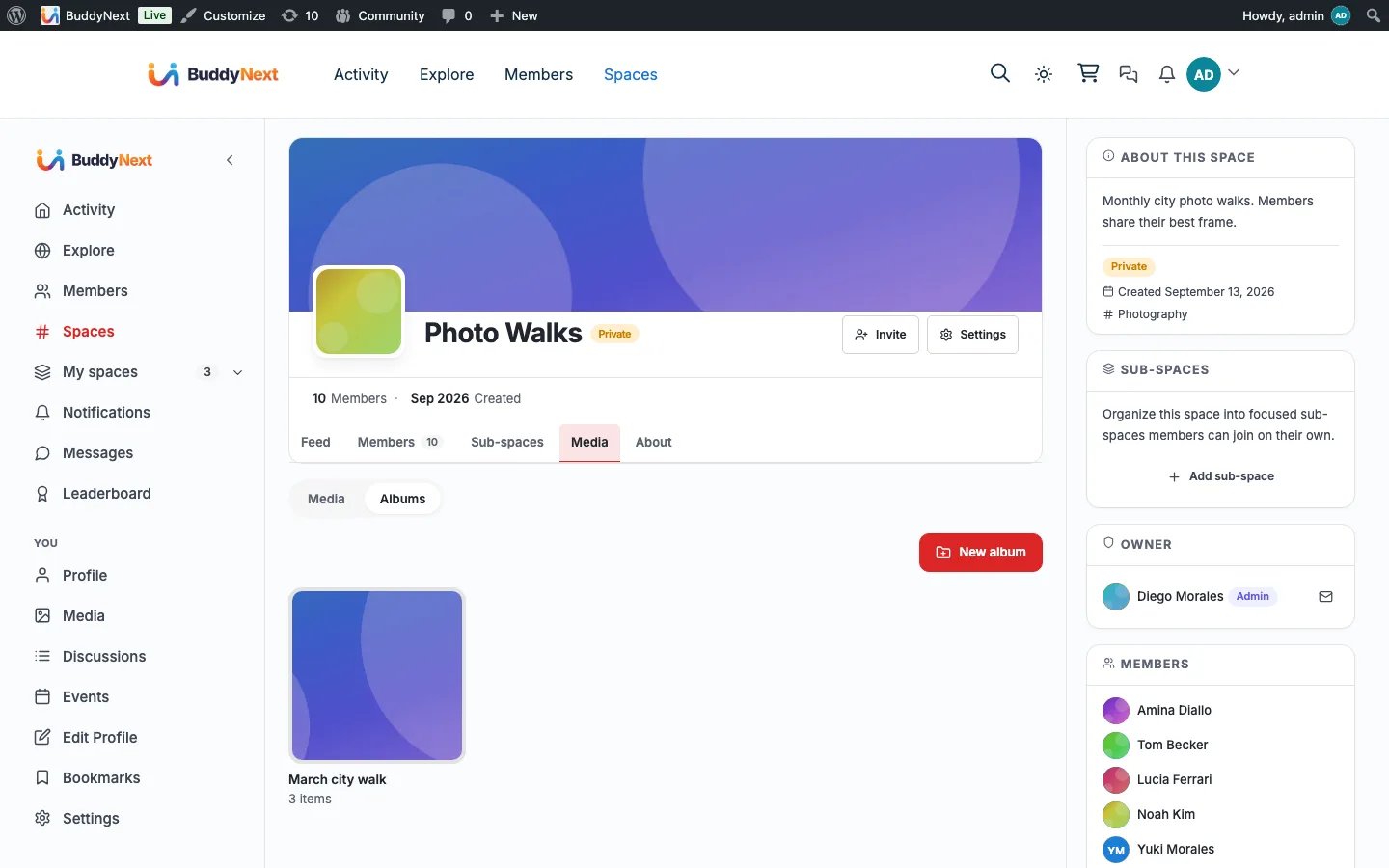
This is the space-level counterpart to Profile Media and Albums. The two work the same way on purpose: same gallery, same uploader, same album controls. What changes is who owns the album and who is allowed to see it.
Why use it#
A community space accumulates photos whether or not anyone organises them. Someone posts pictures from an event, someone else adds a few more the next week, and a month later nobody can find any of them - they are scattered through the feed in date order, mixed with everything else that was said.
An album fixes that. It gives the space a place to keep the pictures from an event together, in the order the space wants them, reachable long after the posts that carried them have scrolled away. For a photography space, a local group that meets in person, a product community, or a class, that archive is often the most valuable thing the space has.
It also removes an awkward workaround. Before, the only albums BuddyNext had were personal ones, so a space's shared photos had to live in some member's profile gallery. That made one person the owner of the group's memories, and it meant those photos left with them.
Turning the Media tab on#
The Media tab is off by default and is enabled per space, so a space that is only ever going to be a discussion does not carry a gallery it never uses.
- Open the space and go to Settings > Integrations.
- Switch on Enable Media tab.
- Save.
The tab appears in the space's tab strip next to Feed, Members and About.
Note: Space media needs the media engine (WPMediaVerse) active on the site, and the site-wide media integration switched on under BuddyNext > Integration Settings. Without those the tab does not appear even when the per-space setting is on.
The two views#
The Media tab opens with a sub-nav holding two views:
- Media - a flat grid of everything shared in this space, gathered from the space's own posts. Anything a member attaches to a post here shows up in this grid without them doing anything extra.
- Albums - the space's own albums, each with a cover and an item count.
Working with space albums#
Creating an album#
In the Albums view, choose New album, give it a name, and save. Members who can post in the space can create one; the space owner can switch on Only organisers can create albums (Settings > Integrations) to keep the gallery curated. Members can still add photos to an album that already exists.
Adding photos#
Open an album and upload into it, the same way as a personal album. You can also add media that is already in the space.
Reordering and removing#
Drag items to set the order the album shows them in. Removing an item from an album takes it out of that album; it does not delete the underlying photo, and anything still attached to a post stays on that post.
When removing a photo would empty part of a space album, BuddyNext says so before it happens, so nobody clears out a set by accident.
Who can edit#
- Anyone who can see the space can view its albums.
- Anyone who can post in the space can create an album and upload into one.
- The album's creator, and the space's admins and moderators, can rename, reorder, and delete.
A member who did not create an album can look through it but cannot rearrange it.
Removing an item from the space (unlink, not delete)#
Any member who can post in a space can add media to it, and once added the item lives on the space's own drive. If an item turns out not to belong in the space, a space owner, admin, or moderator - or the item's own uploader - can Remove from space from the photo's menu in the lightbox.
Remove from space is an unlink, not a delete. The item leaves the space and returns to the uploader's own media as private - they keep their copy, and only they can delete it for good from their own library. Removing it from the space never destroys a member's file.
The Files tab (documents)#
A space can also carry a Files tab for documents (PDFs, spreadsheets, and other attachments), alongside the Media tab. It is a separate per-space switch - Settings > Integrations > Enable Files tab - and is off by default. It needs WPMediaVerse Pro's documents feature to be active, and by default the tab is visible to signed-in members only.
Files behave like Media on a space drive: any contributor can upload a document to the space, and Remove on a space Files tab is the same unlink as above - the document returns to the owner's own Files as private, it is not deleted. (On a member's own Files tab, Remove moves the document to Trash, where they can restore it.)
Who can add files#
Members can upload and link files in a space's Files. The space owner and moderators manage every folder.
Organising files into folders#
- New folder in the toolbar creates a folder in the folder you are looking at. Any member who can add files can create one.
- Each folder row has Rename and Move to trash. The confirm says what goes with it ("It holds 12 files and 2 folders"): everything inside moves to the trash too.
- Trash in the toolbar lists the trashed folders and files you may restore. Restore brings a folder back with everything that was inside it, or a single file back to where it was. A member always has Trash on their own profile Files, since that is where their removed files go.
Who can rename, trash and restore a folder:
| Who | Folders they can manage |
|---|---|
| Space owner and moderators | Every folder in the space |
| A member | Folders they created that hold only their own files |
| A member on their own profile Files | Every folder there |
WPMediaVerse decides these permissions and BuddyNext shows the controls it allows, so a control never appears that would be refused. Folder changes need WPMediaVerse Pro's documents feature with a valid license. Without one, only site administrators can change folders.
Privacy#
A space album's audience is the space. That is the whole rule, and it is worth being precise about because it is not the same as a personal album's privacy setting.
- In an open space, the albums are visible to anyone who can see the space, including logged-out visitors.
- In a private or secret space, the albums are visible only to members of that space. A non-member gets nothing - not a partial listing, not an album with hidden contents, nothing.
- Private and secret space albums do not appear in search for people who cannot see the space.
A space album does not carry a separate per-album privacy control, because it would be misleading: the space already decides the audience, and a "public" album inside a secret space would be a promise BuddyNext could not keep.
Where the photos come from#
The Media grid is derived from posts, so it fills up on its own as the space is used. Albums are deliberate: somebody has to make one and put things in it. A photo can be in both - shared to the space's feed and also filed in an album - and it is stored once either way.
For developers#
Space albums are reachable over REST under the space:
GET  /wp-json/buddynext/v1/spaces/{id}/albums
POST /wp-json/buddynext/v1/spaces/{id}/albums
The per-album routes are shared with personal albums and take an album id, because an album already knows whether it belongs to a space:
GET    /wp-json/buddynext/v1/albums/{id}
POST   /wp-json/buddynext/v1/me/albums/{id}/items
PUT    /wp-json/buddynext/v1/me/albums/{id}
PUT    /wp-json/buddynext/v1/me/albums/{id}/reorder
DELETE /wp-json/buddynext/v1/me/albums/{id}
Album reads are under /albums/{id}; album mutations (add items, rename, reorder, delete) are owner-only and live under /me/albums/{id}.
The listing route is readable without authentication so an open space's albums load for a logged-out visitor, exactly as that space's media does. Permission is applied to the result rather than the request: a viewer who cannot see the space receives an empty list.
See the REST API reference for the full parameter and response shapes.
Related#
- Profile Media and Albums - the personal gallery this mirrors
- Space Types and Privacy - what open, private and secret mean
- Roles and Moderators - who counts as a space admin or moderator