
Account Settings
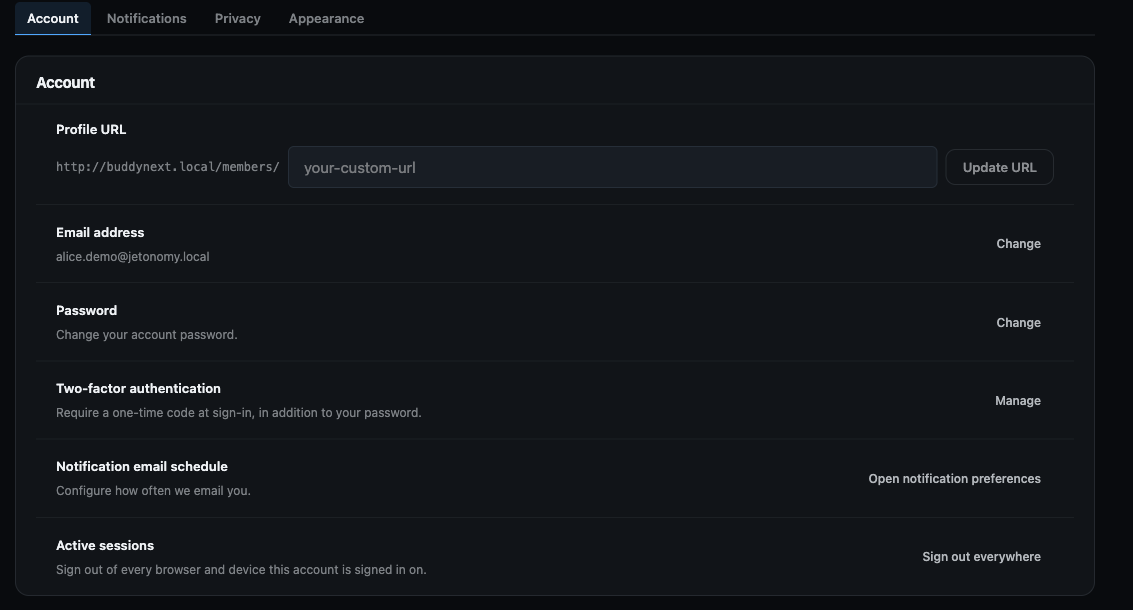
Accounts & Access Free & ProYour account settings are where you control how you sign in and who you have shut out of your experience. This is the security and access side of your profile: your handle, your password, your email address, your active sign-in sessions, two-factor authentication, connected sign-in accounts, and the people you have blocked, muted, or restricted. Open Settings from your account menu: its tabs are Account, Notifications, Privacy and Appearance.
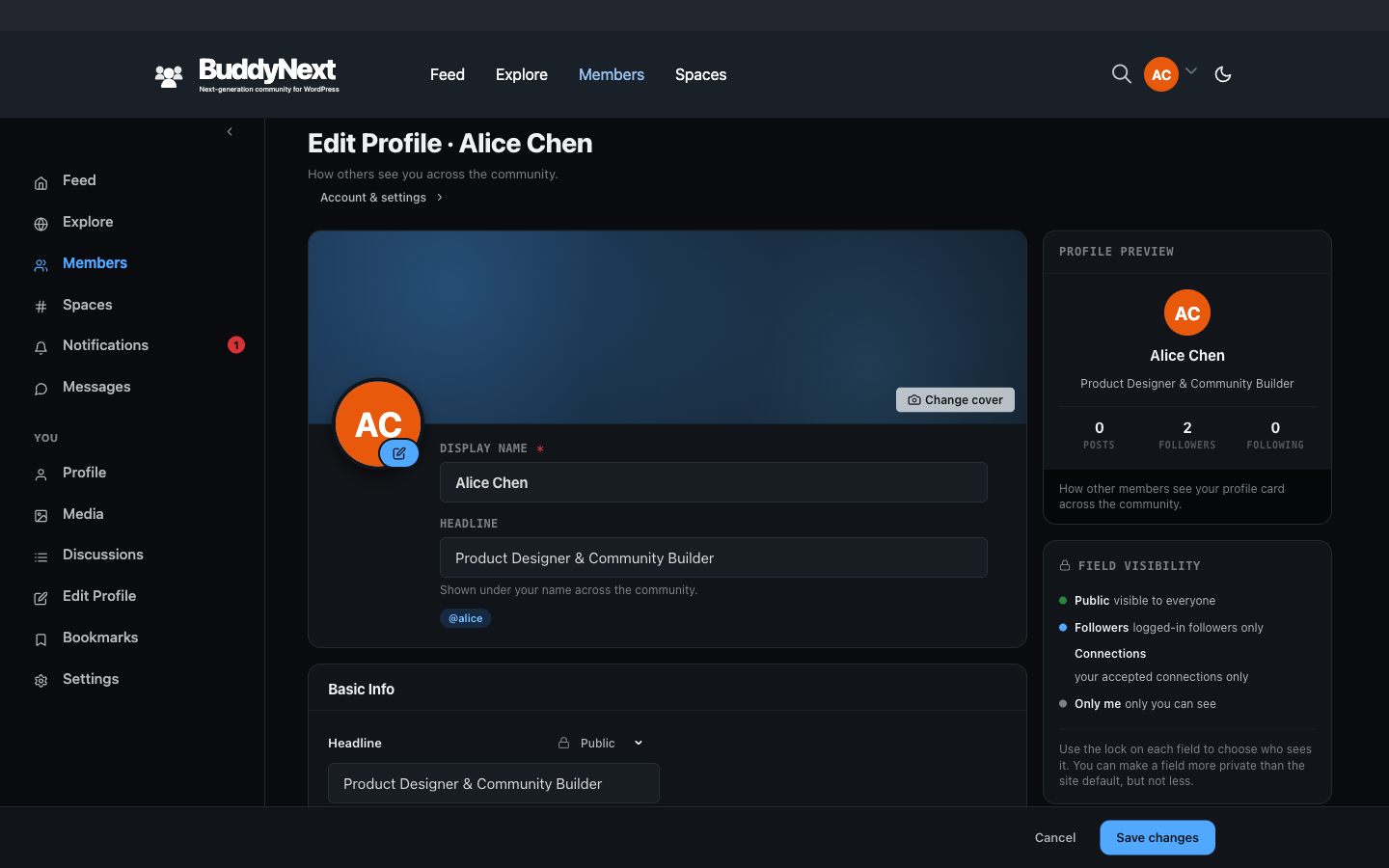
Profile details (name, bio, avatar) and audience controls (who can see your profile, who can message you) live in your profile editor and the Privacy section. This page covers the login and access controls that keep your account yours.
Why it matters#
A community account holds your conversations, connections, and identity. Strong access controls mean that even if a password leaks, you can lock things back down in seconds: rotate the password, end every other session, and turn on two-factor. The block and mute tools let you curate who can reach you without leaving the community.
Change your handle#
Your handle is your profile address and your @mention name. On the Account tab, type a new handle and choose Update handle. If the handle is already in use you are told it is Taken. Your old handle keeps working, and nobody else can take it.
Change your password#
A fresh password closes the door on anyone who may have learned your old one.
- Open your account settings.
- Find the Password control and enter your current password.
- Enter your new password and confirm it.
- Save.
Note: Changing your password does not sign you out of your other devices on its own. If you are rotating your password because you think your account was accessed, also use Sign out of all devices below.
Note: If you joined with Google, Facebook, Apple, GitHub, or Discord and have never had a password, there is nothing to enter as your "current" password - you are setting a first one, not changing one, so that field is not asked for. Setting a password is worth doing: until you have one, your social provider is your only way in, and you will not be able to disconnect it.
Change your email address#
Your email address is how the community reaches you and how you recover access, so changing it is treated as a confirmed action.
- Open your account settings.
- Find the Email control and enter your new email address.
- Save to request the change.
- Watch your inbox for a confirmation message and follow it to finish the switch.
Note: The change is not final until you confirm it from the new address. Until you confirm, notifications and recovery continue to use your existing email. If the confirmation message does not arrive, check your spam folder and try again.
Sign out of all devices#
If you have signed in on a shared, public, or lost device - or you just want a clean slate - you can end every active session at once.
- Open your account settings.
- Under Active sessions, choose Sign out everywhere.
- Confirm.
Every other browser and device that was signed in is immediately logged out and must sign in again. This is the fastest way to lock down your account if you suspect someone else has access.
Note: Pair this with a password change when you are responding to a suspected break-in: change the password first, then sign out everywhere, so the new password is the only way back in.
Manage two-factor authentication#
Two-factor authentication adds a second step at login - a code from your authenticator app - so a password alone is not enough to get in. You can set it up, confirm it, generate backup codes, and turn it off from your account settings.
For the full walkthrough (setting up an authenticator app, confirming your first code, saving backup codes, and recovering if you lose your device), see the Two-Factor Authentication page.
Note: Save your backup codes somewhere safe when you turn two-factor on. They are how you get back in if you lose access to your authenticator app.
Connected accounts#
If your community offers social login, the Account tab lists each provider under Connected accounts, with Connect and Unlink buttons. A provider that is your only way to sign in cannot be unlinked until you set a password.
Account status and profile setup#
The Account tab also has an Account status card (View account status) where you review your standing, any moderation actions and appeal a decision, a Notification email schedule card that opens your notification preferences, and a Profile setup card (Run setup again or Finish setting up) that reopens the welcome flow for profile, interests, spaces and people to follow.
View and manage blocked and muted people#
On the Privacy tab of your settings (alongside the Account tab), under Blocked, restricted & muted, you can review everyone you have blocked, muted, or restricted, and undo any of them.
- Blocked people cannot see your content or contact you, and you do not see theirs.
- Muted people stay connected to you, but their content is hidden from your view.
- Restricted people have limited interaction with you without being fully blocked.
To unblock, unmute, or unrestrict someone, open the relevant list and remove them from it. The change takes effect right away.
For exactly what each action does and how to apply it from someone's profile, see the Blocking and Muting page.
Good to know#
- Email changes are confirmed, not instant. A new email address only becomes active after you confirm it from that address. This protects you if someone types the wrong address or tries to hijack the account.
- Sign out of all devices is immediate and total. It ends every other session, including the one you may have forgotten on another computer. You will stay signed in on the device you are using to trigger it.
- Administrators are handled separately. Site administrators manage their own access through WordPress and some member-facing destructive actions are intentionally not available to them here.
- An administrator can also change these for you. If you are locked out of your email or need a role, handle, or display name corrected, an administrator can update your account directly from the admin - see Editing a Member from the Admin. This does not extend to your password or two-factor setup, which stay yours to manage.
- Blocking is reversible. Nothing in the blocked, muted, or restricted lists is permanent - you can clear any entry whenever you change your mind.
Related#
- Two-Factor Authentication - the full 2FA setup walkthrough
- Blocking and Muting - what the blocked, muted, and restricted lists do
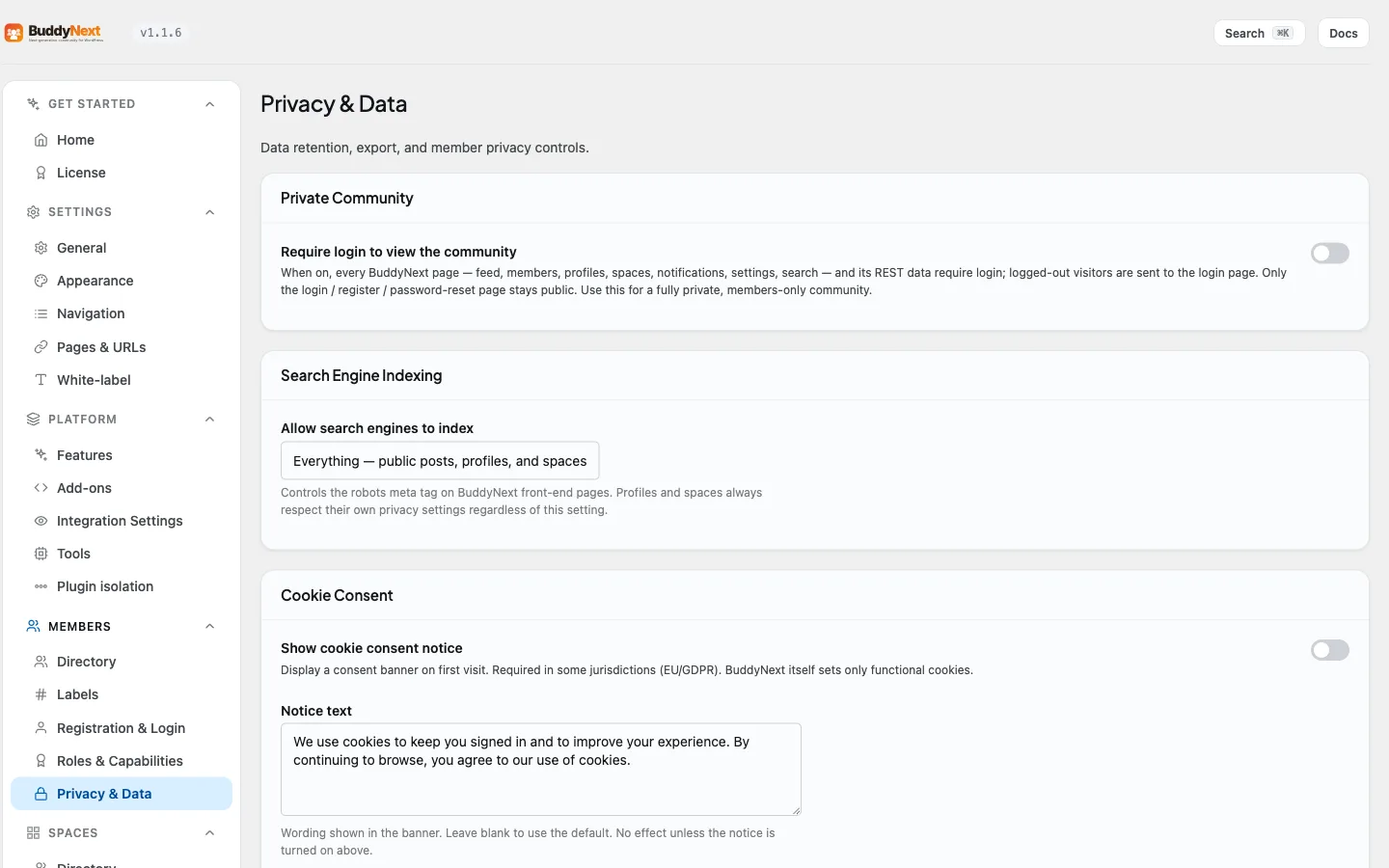
- Privacy and Data - data export, account deletion, and audience controls