
Inviting People to Your Community
Accounts & Access Free & ProAn invitation is a personal link that lets someone join your community with their email address already filled in. You send it, they click it, choose a password, and they are in. Invitations work in any registration mode, and they are the required way in when you run the community as invite-only.
When to use invitations#
- You run an invite-only community. In Invite Only registration mode, a valid invitation is required to sign up - invitations are the front door (see Registration for the mode setting).
- You want a smoother welcome, even with open sign-up. In Open mode anyone can register, but an invitation link still saves the new member a step by pre-filling their email.
- You are seeding a new community. Bulk-invite a list of people you already know - a mailing list, a set of clients, last year's cohort - in one upload.
Where to find it#
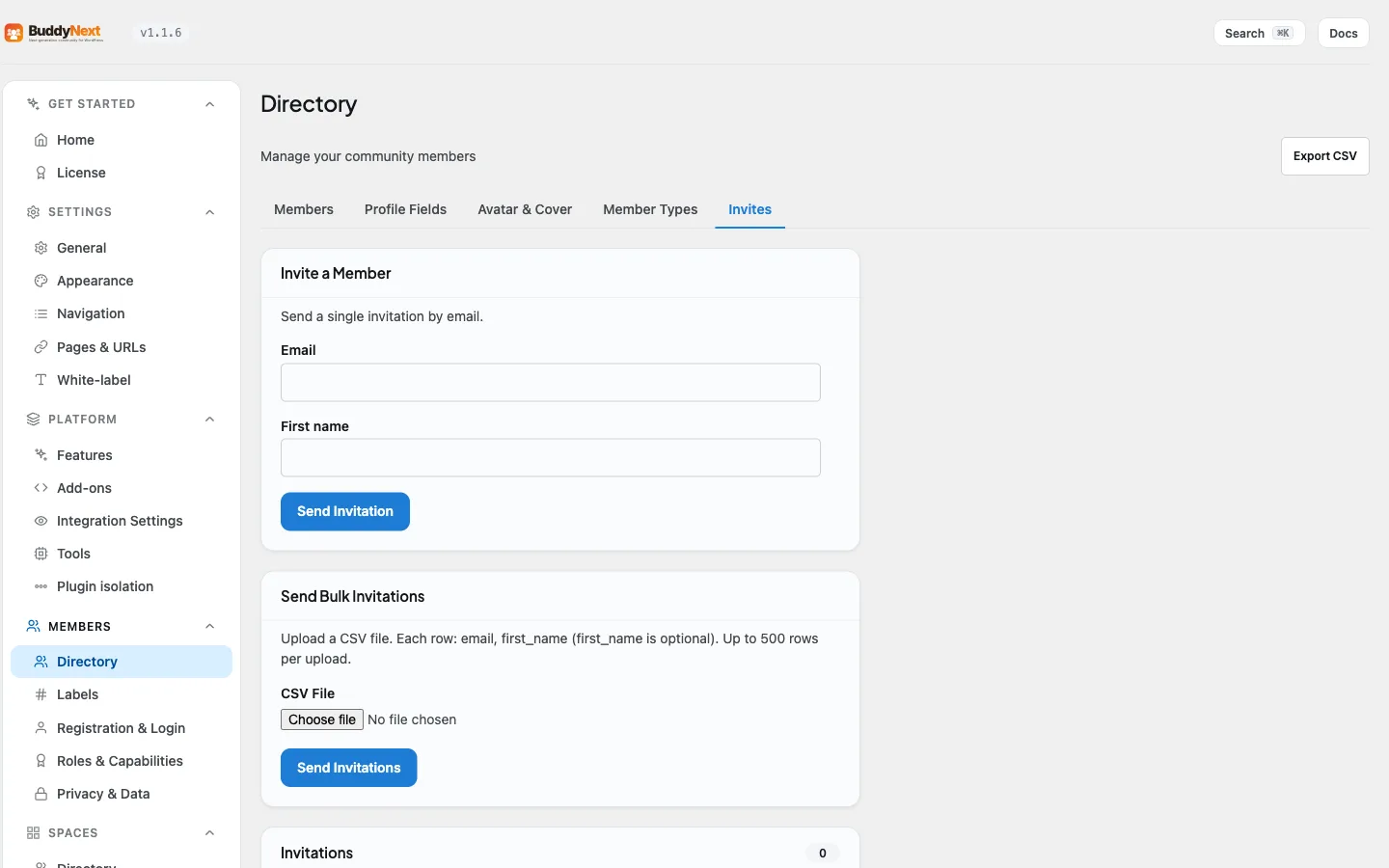
Everything lives under BuddyNext > Members > Directory > Invites. There is also a shortcut button on the Registration & Login settings tab that jumps you straight here.
Sending invitations is an owner action - it needs the WordPress manage options capability, so administrators send them, not members.
Sending a single invitation#
- Go to BuddyNext > Members > Directory > Invites.
- Enter the person's email address (and optionally a first name, which personalises the email).
- Choose Send invitation. BuddyNext emails them a personal link.
Inviting many people at once (CSV)#
For a list, upload a CSV instead of typing each address:
- On the Invites tab, find Send bulk invitations.
- Choose a CSV file where each line is
emailoremail,first_name. - Choose Send invitations. BuddyNext sends an invitation to each valid address and tells you how many rows were skipped.
A few rules keep a bulk send sane:
- Up to 500 rows are processed per upload; anything beyond that is ignored.
- An address that already has a pending invite is skipped, so re-uploading a slightly longer list never double-invites the people already on it.
- The file type is checked from the file's own bytes, so only a real CSV is accepted.
What the recipient sees#
- They get an email with a personal invitation link. If you gave a first name, the email is addressed to them.
- The link opens the sign-up form with their email already filled in - they only choose a password.
- The link is tied to that email address. It cannot be forwarded and reused to register a different address.
- Invitations expire after 7 days by default. An expired link is refused, but you can resend to issue a fresh one.
Tracking and managing invitations#
The Invites tab lists every invitation with when it was sent and its status:
| Status | Meaning |
|---|---|
| Pending | Sent, not yet accepted. |
| Accepted | The person signed up using the invitation. |
| Expired | The 7-day link lapsed before it was used. Resend to issue a fresh one. |
| Bounced | The invitation email could not be delivered. |
The tab also has a status filter (Pending, Expired, Accepted, Bounced, All) so you can jump straight to, say, everyone who has not accepted yet.
For any invitation you can:
- Resend - regenerates the link (resetting the 7-day clock) and emails it again. Useful for a bounced address that has since been corrected, or a link that expired before the person got to it.
- Revoke - cancels a pending invitation so its link no longer works.
The emails invitations send#
Invitations use BuddyNext's own email templates, which you can edit under Notifications > Email Templates:
- The bulk invite email is what a CSV-invited member receives.
- Inviting an existing member into a space is a different thing. It sends them a space invitation notification, and the Space invite template (in the Spaces group) controls its email wording. To bring in many people at once, use a space's invite link instead.
Editing a template changes the wording for every future send - see the Email System page.
Good to know#
- Invitations are not the same as approvals. Invite Only mode requires an invitation to sign up; Admin Approval mode lets anyone request an account and holds it for your review. They are separate registration modes - see Registration.
- Invitations work alongside social login. An invited person can still finish sign-up with Google or another provider rather than setting a password, as long as the provider account uses the invited email address.
Related#
- Registration - the registration modes, including Invite Only
- The Guest Experience - what an uninvited visitor sees
- New-Member Onboarding Wizard - where an invited member lands once registered
- Email System - editing the invitation emails