
Shortcodes and Placement
Getting Started Free & ProBuddyNext creates its community pages for you during setup, and on most sites you never have to think about placement again. But sometimes you want a community surface to appear somewhere of your own choosing - inside a classic page, in a sidebar, or on a custom layout your theme builds. Shortcodes are how you do that.
A shortcode is a short tag in square brackets you drop into a page, post, or widget. When the page loads, BuddyNext replaces the tag with the matching community surface - the activity feed, the member directory, a space, and so on. They work in any editor that accepts shortcodes, which makes them the right tool for classic (non-block) themes and page builders.
Blocks vs shortcodes - which to use#
Both place the same community surfaces. The difference is the editing environment:
- Use blocks if you build pages with the WordPress block editor (Gutenberg) or a block theme. Blocks give you a visual placeholder and live preview right in the editor, so you can see and position a surface as you build the page.
- Use shortcodes if you use a classic theme, the Classic Editor, a page builder, or a widget area that does not support blocks. Shortcodes also shine when you want a community surface inside content that is otherwise plain text or HTML.
You do not have to choose one for the whole site. Use blocks where the block editor is available and shortcodes everywhere else - they place the identical surfaces, so the result looks the same to your members.
Note: On a normal install you do not need to place anything by hand. BuddyNext's setup creates the community pages and wires up the navigation for you. Reach for shortcodes only when you want a surface in a custom spot.
The community shortcodes#
Each shortcode below places one BuddyNext surface. Add the tag to a page, post, or widget exactly as shown.
Activity feed#
[buddynext_activity]
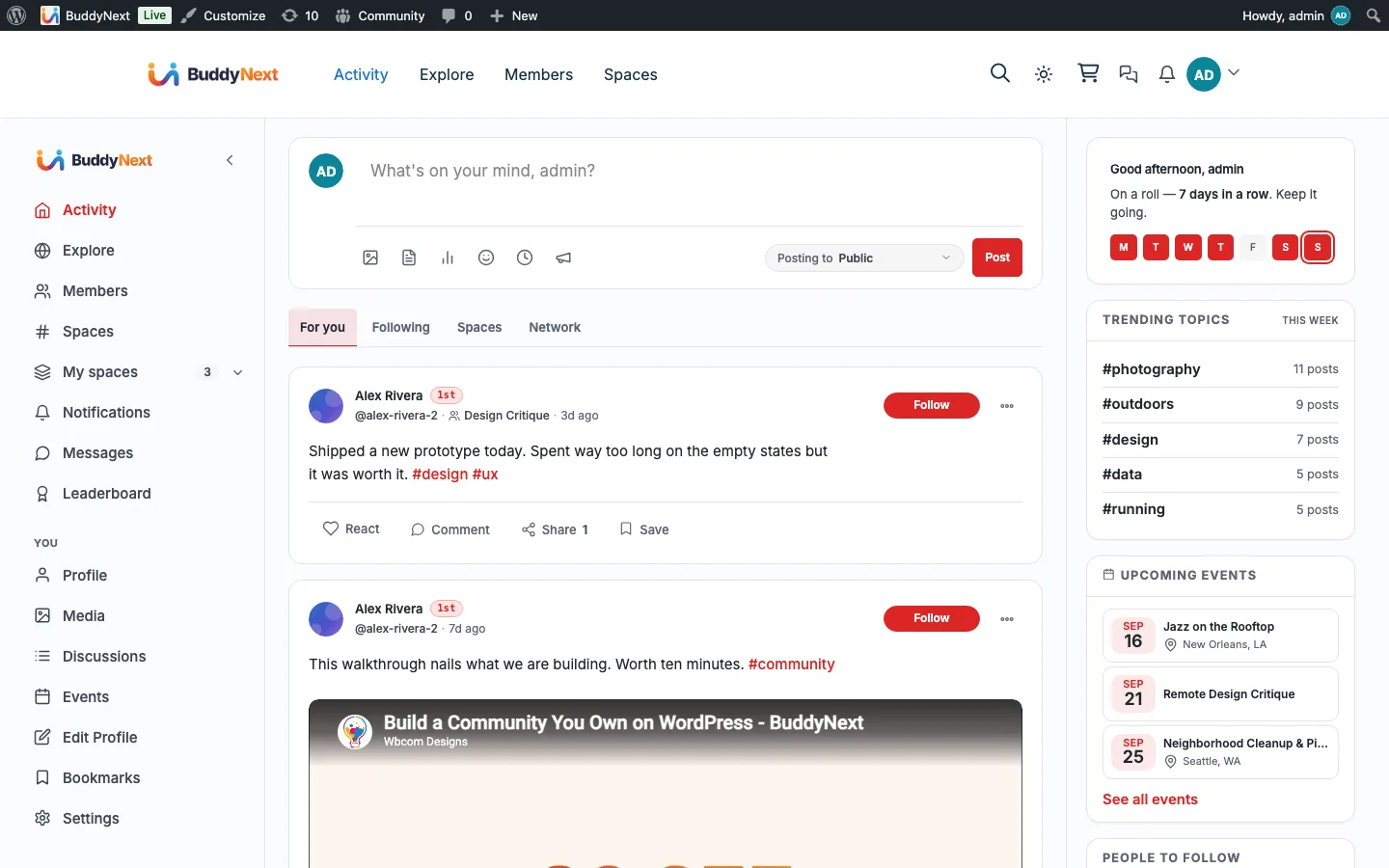
Places the main community activity hub - the home feed with the post composer, reactions, comments, and shares. This same surface also carries the Explore view, hashtag feeds, community search results, and the gamification leaderboard, shown automatically based on what the member is viewing. This is the heart of the community and the most common surface to feature on a landing or home page.
People (member directory and profiles)#
[buddynext_people]
Places the people hub - the searchable member directory, individual member profiles, profile editing, and connections - shown automatically depending on what the member is looking at. On its own it shows the member directory.
You can also point it at the current member's own profile with the view option:
[buddynext_people view="profile"]
This shows the logged-in member their own profile (and prompts a guest to log in).
Spaces (groups)#
[buddynext_spaces]
Places the spaces hub - the directory of spaces, an individual space's home, its members, settings, and moderation - shown automatically based on what the member is viewing. On its own it shows the spaces directory, the place where members browse and join communities.
Messages#
[buddynext_messages]
Places the direct-messaging surface - the member's conversation list, individual threads, and message requests. Members must be logged in to see it; guests are shown a prompt to log in. (Direct messaging is powered by the WPMediaVerse companion plugin.)
Notifications#
[buddynext_notifications]
Places the member's notifications center, where they catch up on follows, reactions, comments, mentions, and other community activity. Members must be logged in to see it.
Sign in and registration#
[buddynext_auth]
Places the BuddyNext login and registration forms on whatever page you put it on - useful for a custom welcome or join page. Members who are already logged in are sent straight to the activity feed, so this surface only ever shows to guests.
Community admin panel#
[buddynext_community_admin]
Places a front-end management panel for your community managers - a site-wide overview with moderation tools that does not require going into wp-admin. It is visible only to administrators and community moderators; everyone else is not shown the controls. Put it on a private or restricted page meant for your team.
Community search bar#
[buddynext_search]
Places a search form that submits to the community search results page - the classic-theme equivalent of the block editor's search-bar block. Two optional attributes: placeholder for the input's placeholder text, and type to scope the search (all, members, spaces, or posts). For example:
[buddynext_search placeholder="Search the community..." type="members"]
This is a single search form, not a full hub, so it renders inline wherever you place it rather than taking over the page. It does not replace your theme's own ?s= WordPress search - it is a separate entry point into community search specifically.
Note: The logged-in header controls (notification bell, messages icon, and avatar dropdown) are placed with the Header User Menu block in the block editor, not a shortcode. See the Blocks Reference if you are building a classic-theme header and need that surface outside the block editor.
Tips for placing surfaces#
- One main surface per page. Give the activity feed, the directory, a space, messages, and notifications their own pages rather than stacking several full surfaces on one page. They are full experiences, not small widgets.
- The search bar is the exception. It is a small inline form meant to sit in a header, sidebar, or widget area alongside other content, not on its own page.
- Logged-in surfaces prompt guests to log in. Messages, notifications, and the community admin panel show a sign-in prompt to visitors who are not logged in, so it is safe to link to them from anywhere.
- Styling comes along automatically. When you drop a shortcode onto an ordinary page, BuddyNext loads its styling for that surface so it looks right even outside the standard community pages.
For developers#
This page is the placement guide for site owners and builders. If you are looking for the full technical reference - every shortcode with its parameters, the surfaces it can route to, and notes on theme integration - see the Shortcodes reference in the Developer Guide.
Related#
- Admin Overview - where the community pages the wizard created live.
- Appearance and Branding - styling that carries onto placed surfaces.
- Shortcodes Reference - every shortcode with its full parameters.
- Blocks Reference - the block editor equivalents of these surfaces.